Archive workspaces
When a project is complete, you can archive the workspace to preserve its workflow or data while preventing further job execution.
Archiving disables workflow and job execution but keeps all flows, analytics, results, and datasets accessible to workspace members. This is a common practice at the end of a data-sharing engagement or after audit deliverables have been finalized.
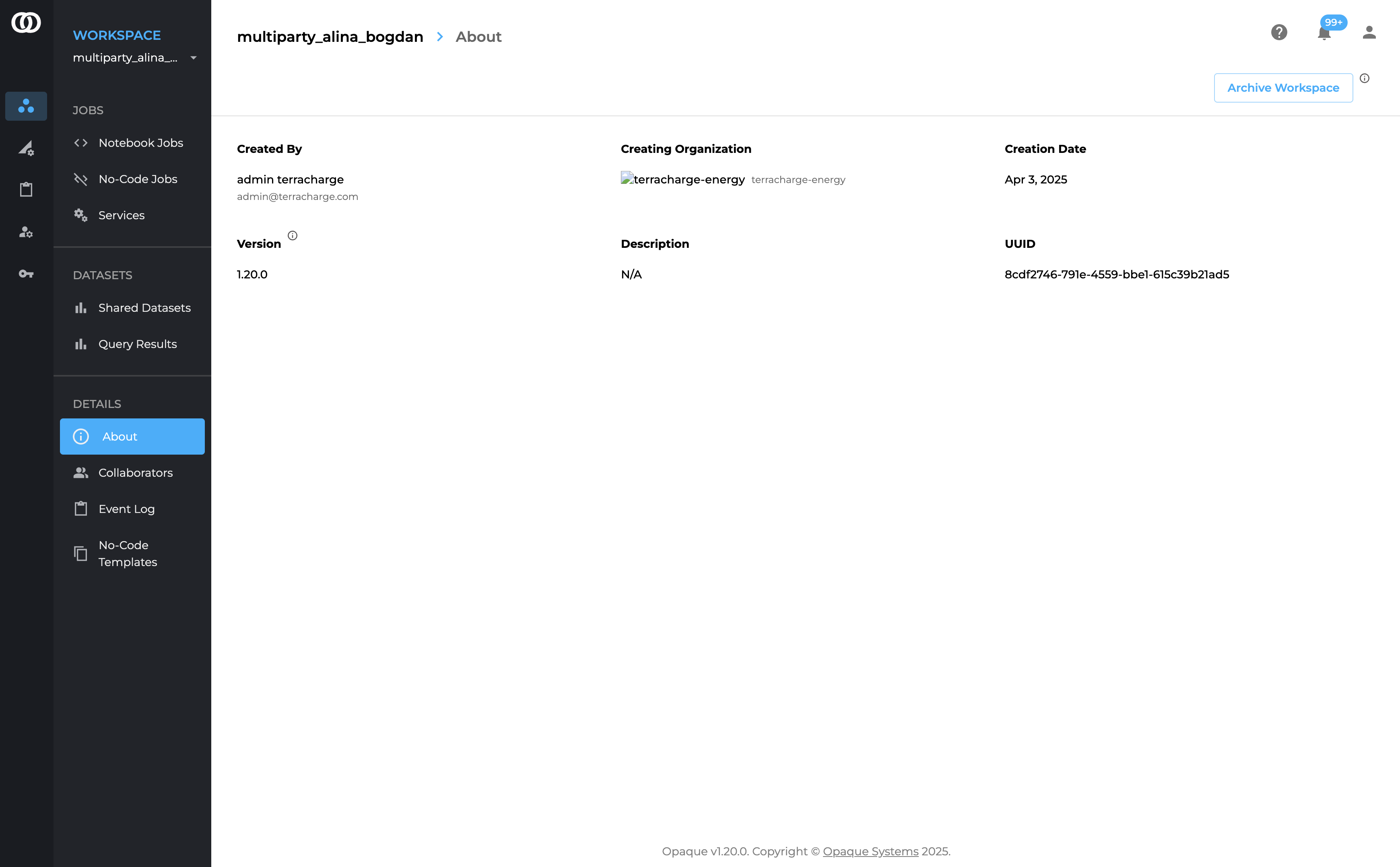
Archive a workspace from the Overview tab to preserve data and disable jobs.
To archive a workspace:
- Go to the Workspaces page and select the workspace to archive.
- On the Overview tab, click Archive workspace in the Workspace details section.
- Click Confirm to archive the workspace.
The workspace will now appear on the Workspaces page under the Archived Workspaces tab, where members can still view previously executed jobs.
Unarchive workspaces
You can restore an archived workspace at any time to make it active again.
Unarchiving reactivates the workspace while preserving all previously stored data, results, and configurations. This is useful if you need to revisit a completed project, update workflows, or continue working with existing datasets.
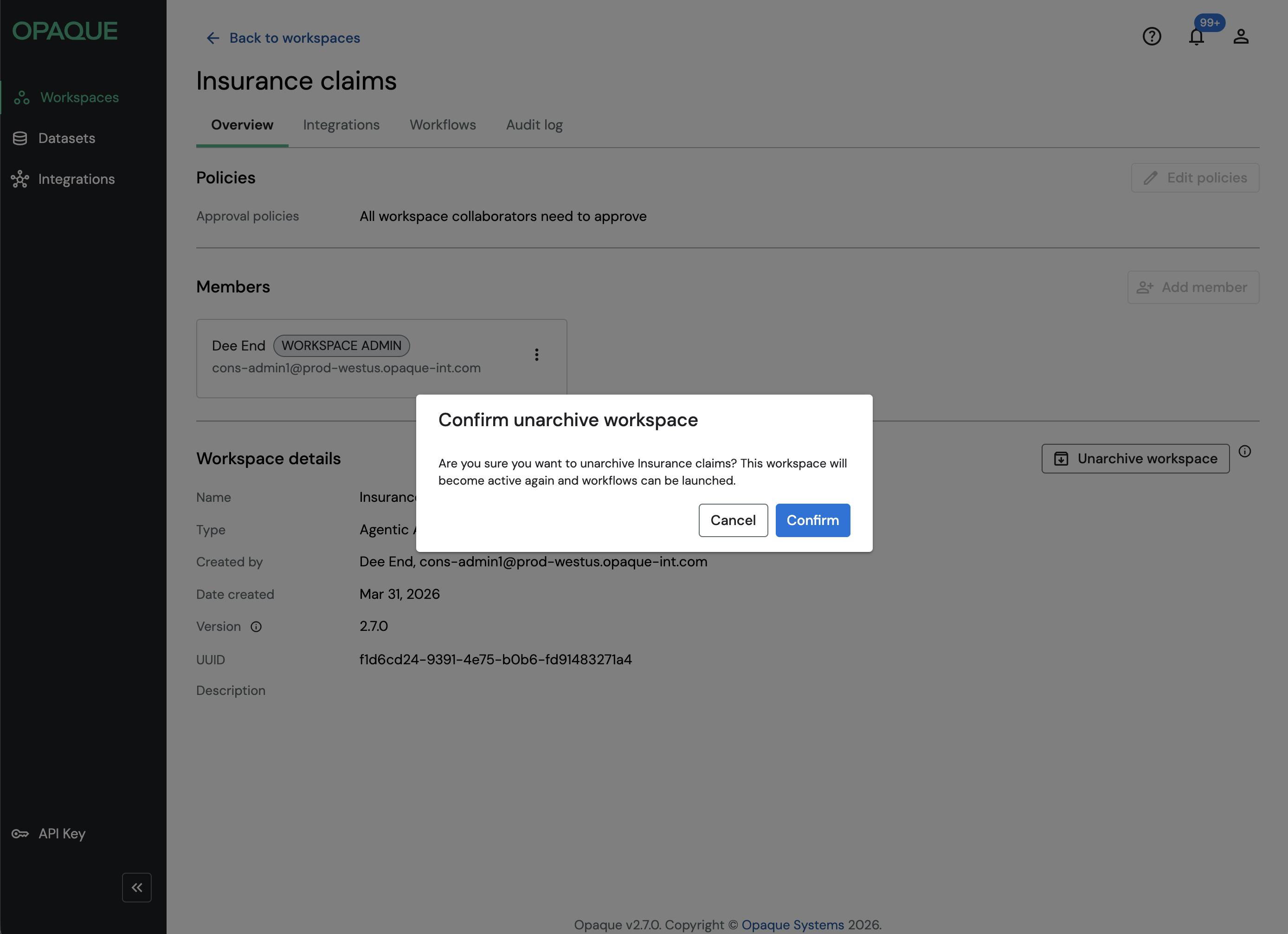
Restore an archived workspace from the Overview tab.
Restore an archived workspace from the Overview tab.
To restore an archived workspace:
- Go to the Workspaces page and click the Archived workspaces tab.
- Select the workspace to restore.
- On the Overview tab, click Unarchive workspace in the Workspace details section.
- Click Confirm to restore the workspace.
The workspace is returned to the Workspaces page under the Active Workspaces tab.