Overview
In OPAQUE, a workspace is a secure environment where teams can build and run workloads over sensitive data—without ever exposing that data. Workspaces isolate users, data, and logic, ensuring that each team operates within clearly defined security and policy boundaries.
OPAQUE supports two types of workspaces:
-
Agentic AI workspaces for creating long-running, intelligent workflows where agents use models, logic, and retrieval to serve secure, auditable results.
-
Analytics and ML workspaces for developing and running notebook jobs and no-code jobs that transform or analyze encrypted datasets.
Each workspace is scoped to one of these types.
Workspaces list view
After signing in to OPAQUE, you’ll land on the Workspaces page.
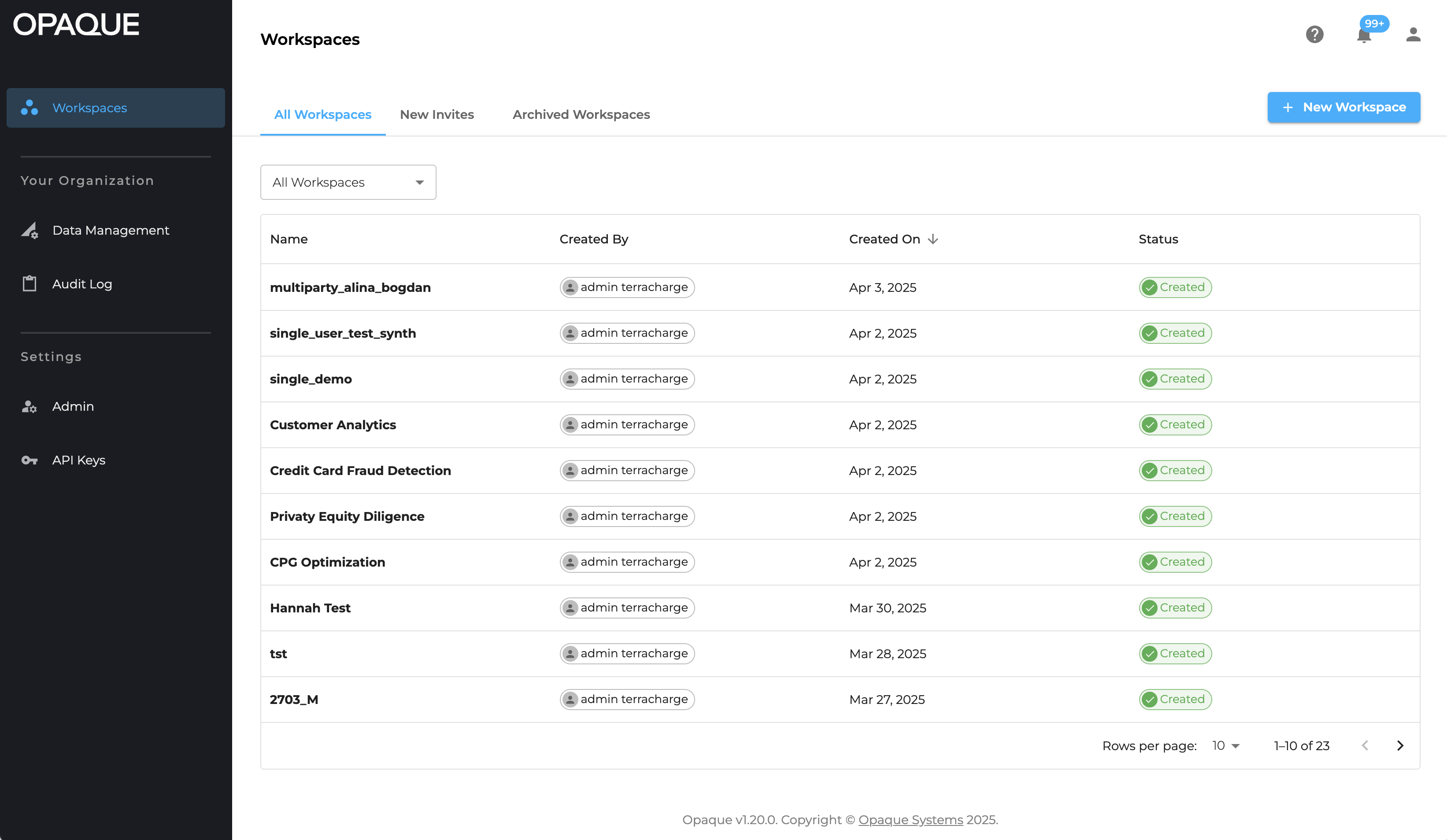
The Workspaces page showing multiple workspaces (workspace admin view).
The Workspaces page gives you a sortable overview of all workspaces you’ve created or are a member of. Each entry includes key details such as name, creator, creation date, type, and number of members.
Two tabs across the top help you navigate workspace activity:
- Active Workspaces lists all workspace you’ve created in your role as workspace admin or are a member of.
- Archived Workspaces provides access to workspaces from concluded projects (see Archive workspaces).
Use the search field to quickly find a specific workspace by name.
You can also sort the table by name, creator, creation date, and workspace type using the column headers. By default, workspaces are shown in descending order by creation date.
Workspace overview
When you select a workspace from the list, you’ll be taken to its Overview tab. This page provides a high-level snapshot of the workspace’s policies, members, and details.
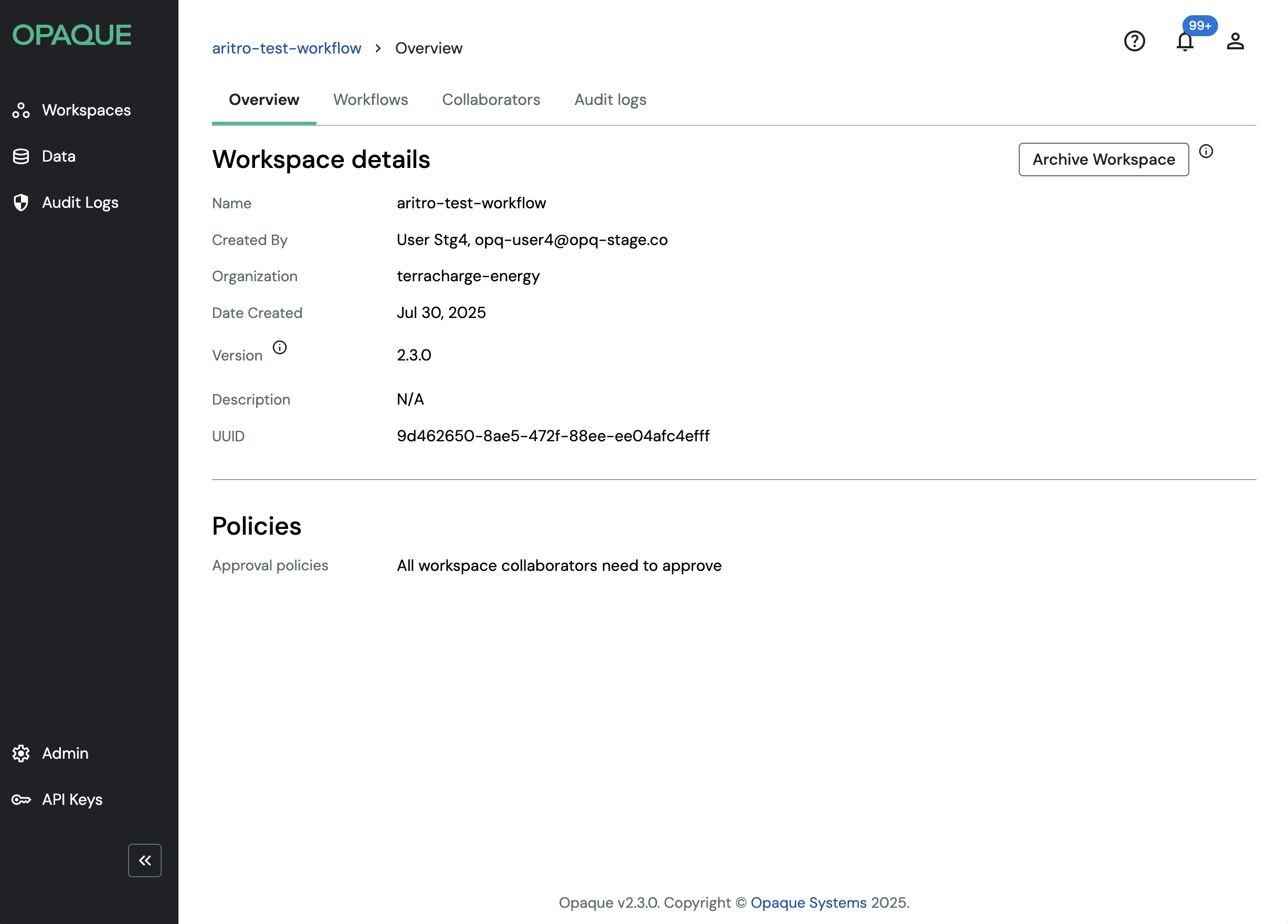
The Agentic AI workspace overview page (workspace admin view).
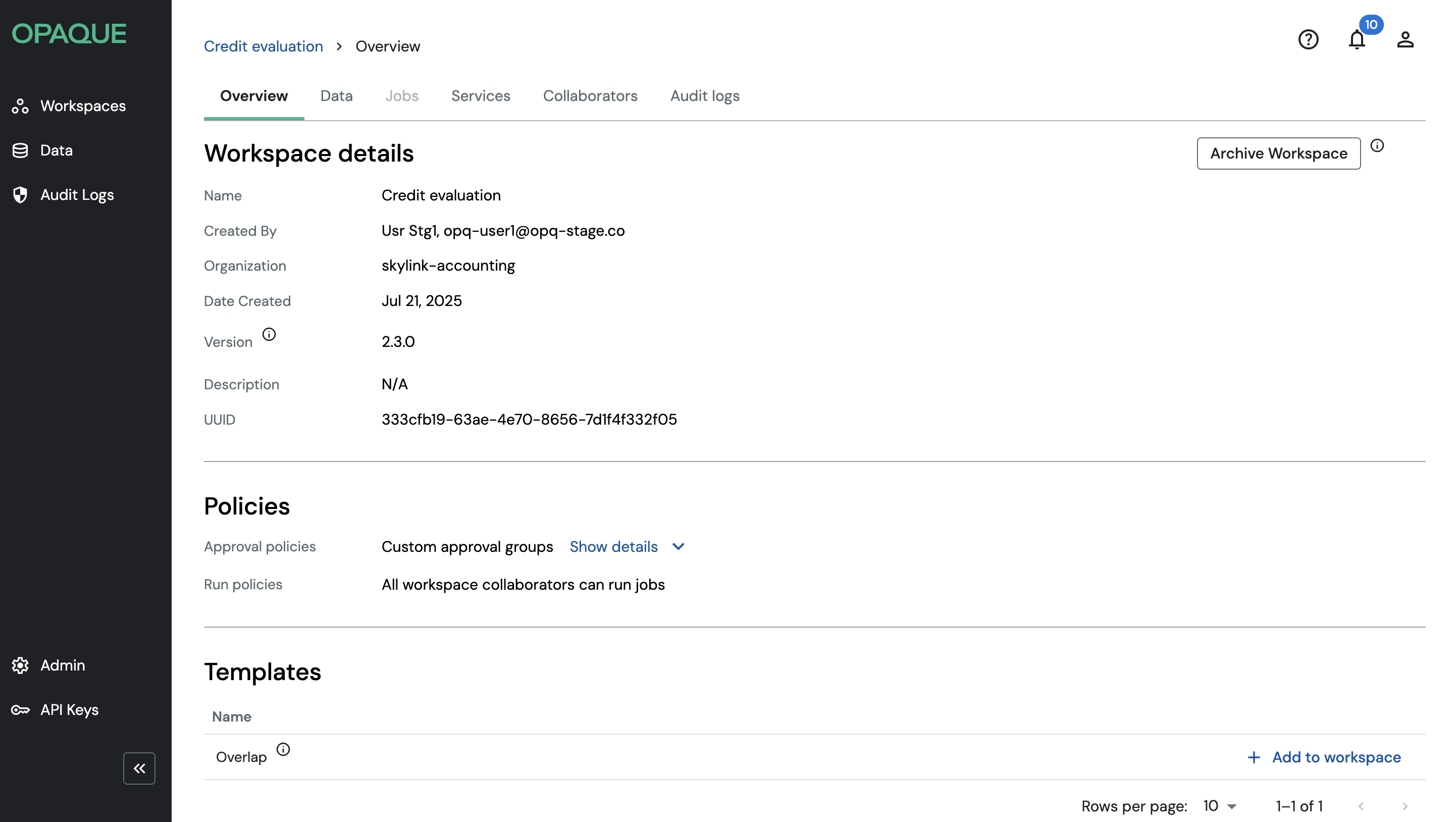
The analytics and ML workspace overview page (workspace admin view).
Here’s what you’ll find:
- Policies: See which approval policies and run policies apply to this workspace. These policies determine how workflows or jobs are launched and who can run them.
- Members: View the members of the workspace and their roles. Workspace admins can also add members and manage workspace access from this section.
- Workspace details: View the workspace name, creator, creation date, version, and unique ID. This section helps you confirm that you're in the right workspace.
- Templates (Analytics and ML workspaces only): Add (or remove) templates using the Add to workspace (Remove from workspace) link (workspace admins only). Once added, templates appear as options when creating no-code jobs.
Use the tabs at the top of the page to view workspace-level integrations and workflows (agentic workspaces only), or datasets and jobs (analytics and ML workspaces), as well as audit logs (workspace admins only).