Jobs list view
The jobs list tab displays all jobs in the selected Analytics and ML workspace. To open it, select Workspaces from the side navigation, choose your analytics and ML workspace, and click the Jobs tab.
Use the Notebook Jobs and No-Code Jobs buttons to switch between job types.
Navigating jobs lists
From the jobs list tab, you can:
- Create a new job
- View and open job details by clicking a row
- Check job status and recent activity
- Search, filter, and sort jobs
- Archive jobs (job creators and workspace admins only)
- Delete jobs you’ve created
Note
The jobs list is empty until at least one job is created.
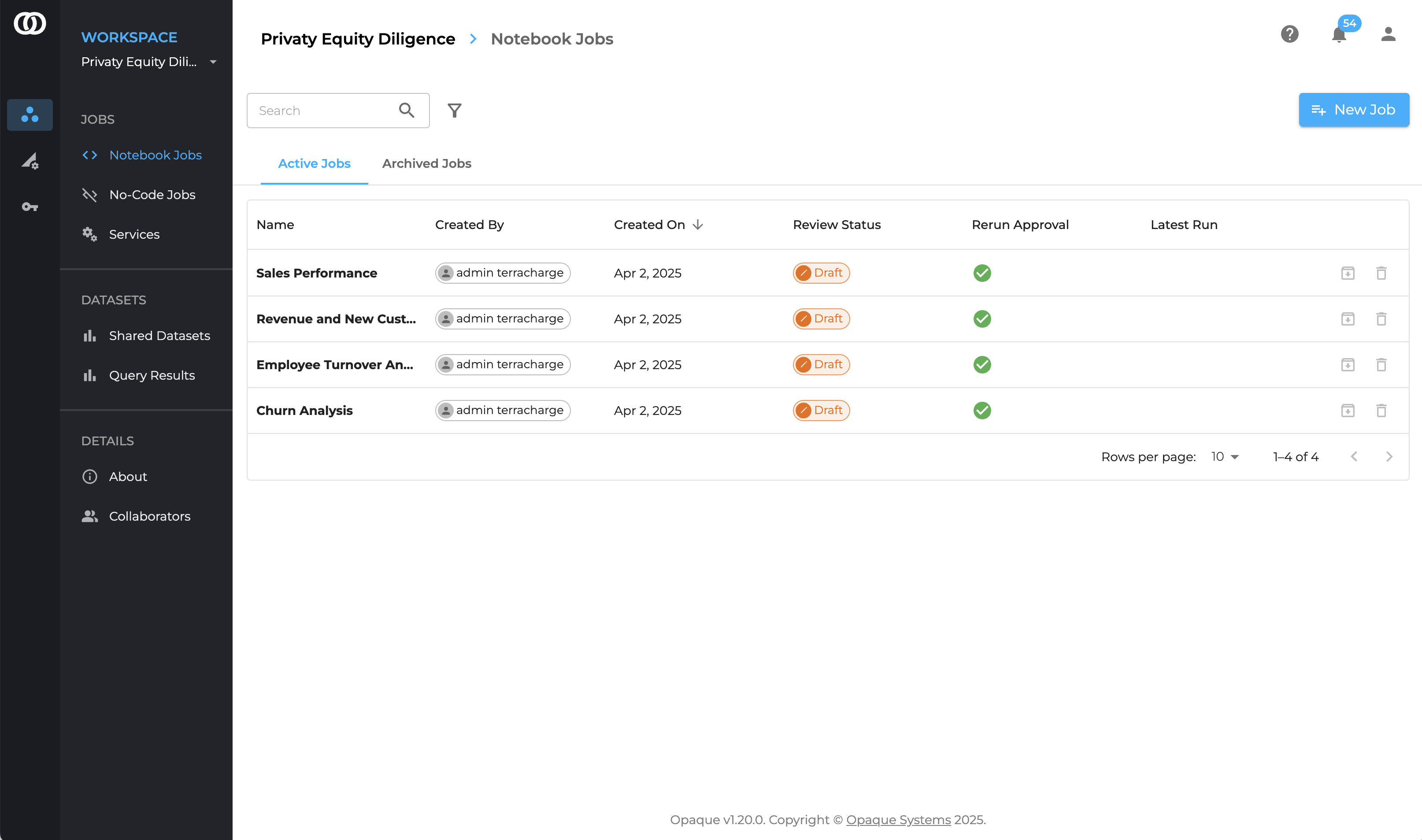
The Jobs tab of an Analytics and ML workspace.
Track job details
Each row represents a job or analysis and includes key details:
- Name: The name assigned by the job author.
- Created By: The job author and their organization.
- Created On: The date the job was created (US format: Mon DD, YYYY).
- Review Status: Indicates the approval state:
- Draft: The job is being written.
- Under review: Waiting for review by one or more members. Click the status to view individual responses.
- Rejected: Rejected by at least one member. The job author can revise and resubmit it.
- Accepted: Approved by all workspace members.
- Rerun Approval: Indicates whether the job allows reruns. This column is blank for one-time jobs.
Latest run status
The Latest Run column shows the status of the most recent execution:
- Queued: Waiting to be processed.
-
Running: Computation in progress. Results are automatically re-encrypted with each member’s key to ensure secure access.
Note
Re-encryption prevents intermediate query results (which might contain sensitive information) from being exposed, while ensuring that each member can securely view the final results.
-
Succeeded: The job completed successfully and results are available.
- Failed: An error occurred or re-encryption failed.
Job actions
- Archive (): Available to the job creator or admins.
- Remove (): Available to the job creator.
Search and filter jobs
To narrow the list of jobs in the table you can search by job name or click the filter icon next to the search field to apply additional filters.
- To search by name, enter a name or partial string to filter jobs by name. This field is case-sensitive.
- The filter icon enables you to apply filter jobs by:
- Date (From/To): Specify a date range to show only jobs created within that window.
- Job creator (Created By): Select one or more workspace members to show only jobs they created.
- Review Status: Select one or more statuses to display only jobs with those statuses.
You can also sort jobs by column headers (e.g., alphabetical by name, newest first, and so on).
Next steps
-
To create a new job, continue with the respective getting started section for notebook jobs or no-code jobs.
-
For an overview of job types, see the notebook jobs or no-code jobs pages.