Quick start
This section helps you get oriented in OPAQUE. It walks you through the sign-in process, introduces the core interface elements, and summarizes the typical first steps for new users, depending on their role.
Note
For the best experience, use the latest version of Google Chrome to access OPAQUE; other modern browsers, such as Firefox or Safari, may work, but full compatibility hasn’t been verified. Also, OPAQUE relies on cookies to function properly, so make sure cookies are enabled (or add the application to your browser’s allowlist).
Roles at a glance
Access to resources is managed through role-based access control (RBAC). Your role determines what you can view and do, for example:
- Organization admins (provisioned by OPAQUE) assign workspace admins, manage workspace membership and policies, and access organization-wide audit logs and attestation reports.
- Workspace admins create workspaces, configure shared resources, manage workspace membership and policies, and monitor workspace-level access to sensitive data.
- Workspace members (added by workspace admins) build or approve agentic and analytics workloads.
Sign in
Designated organization admins
When you first sign in, you will not yet have admin privileges. OPAQUE will grant you organization admin rights within one business day, enabling you to manage your users and organization.
To access OPAQUE you need a sign-in link (provided by your administrator) and your single sign-on (SSO) credentials (e.g., Okta or Microsoft Entra).
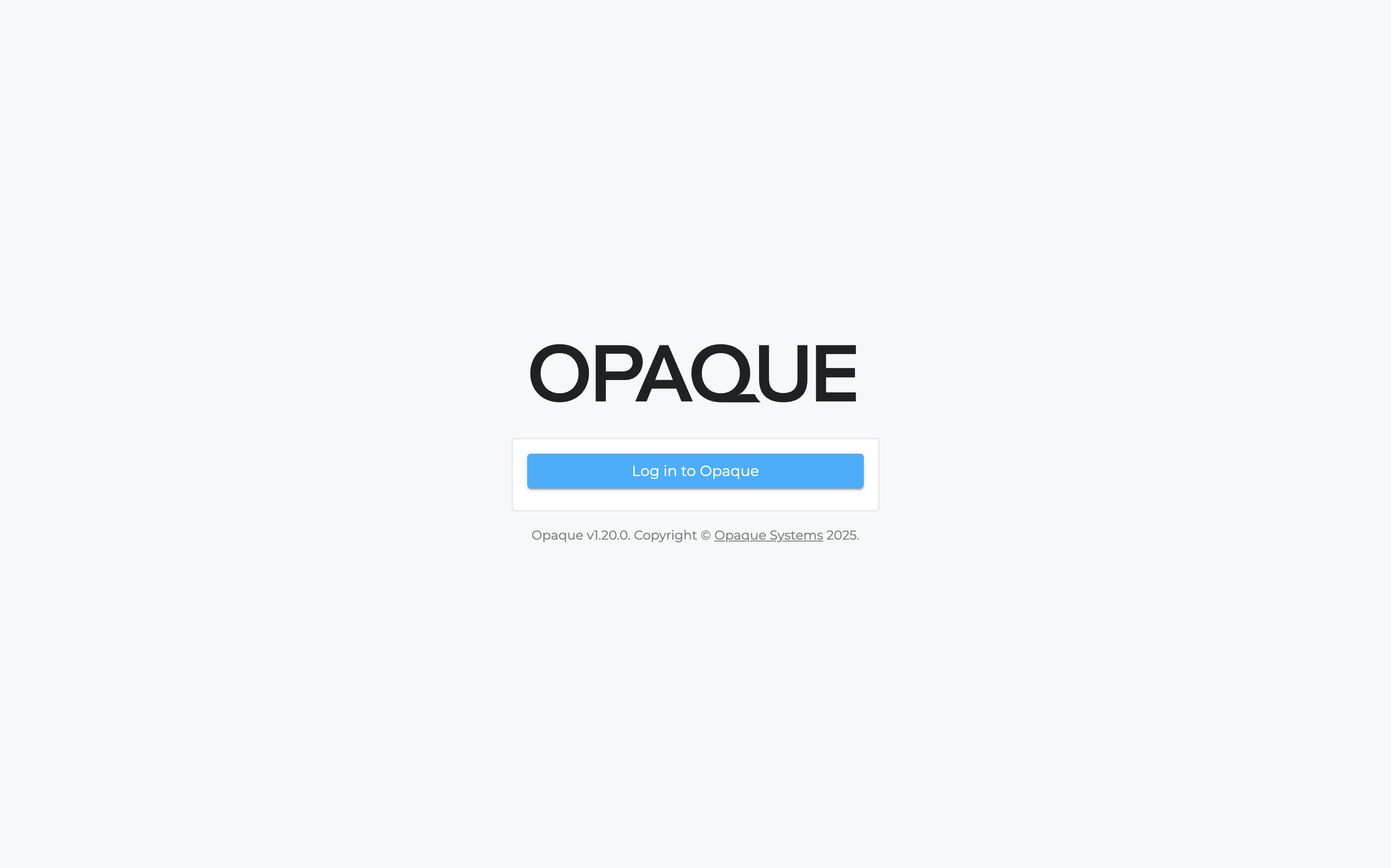
The OPAQUE sign-in page.
To log in to OPAQUE, go to your organization's OPAQUE login page (your administrator will provide the link) and sign in using your sign in using your company's SSO credentials.
After logging in, you’ll land on the Workspaces page. From here:
- Workspace admins can create new workspaces (and add members).
- Workspace members (users) access workspaces to which they've been added.
For an overview of the user interface and navigation, see UI basics.
Note
- You can only be signed in to OPAQUE on one device or browser at a time. Signing in on a new device will automatically log you out of any previous session.
- To stay signed in when refreshing your browser, make sure third-party cookies are enabled.
Trouble signing in? Try the following:
- Verify you’re using the correct email and password.
- Contact your administrator to make sure your account is assigned to your organization’s SSO application (e.g., Okta or Microsoft Entra).
Sign out
To log out of OPAQUE:
- Click your user account () icon in the top-right corner.
- Select Logout from the dropdown menu.