No-code jobs
No-code jobs let you run secure, encrypted analyses without writing any code. Instead of working in a query editor, you fill out a guided form to configure a prewritten job template. This makes them a good fit for repeatable workflows or situations where the analysis logic is fixed and only the inputs change.
Before you begin
No-code jobs require a job template to be available in your workspace. OPAQUE currently ships one template, Overlap, which must be added to your workspace by a workspace admin before you can use it.
If you open a new no-code job and see "No job templates found in this workspace," contact your workspace admin and ask them to add the Overlap template. Admins can do this from the Templates section on the workspace's Overview page.
The job detail page
When you open a no-code job, the page is organized into the following areas:
- Template tab: Here you select a template, choose your datasets, and configure the job inputs. This is also where results and logs appear after a job runs.
- Details tab: Shows basic metadata: job name (editable by the job creator, max 50 characters), optional description (max 150 characters), date created, and the email of the member who created the job.
- Run History tab: Lists all past executions, with date, time, and run status for each. Click any run to view its Results and Logs.
- Workflow panel: The collapsible panel on the right tracks your progress through the four steps: Select Job Template, Select Datasets, Approval, and Run Job. During review, it also shows each workspace member's review status (Pending, Approved, or Declined) and any reviewer comments.
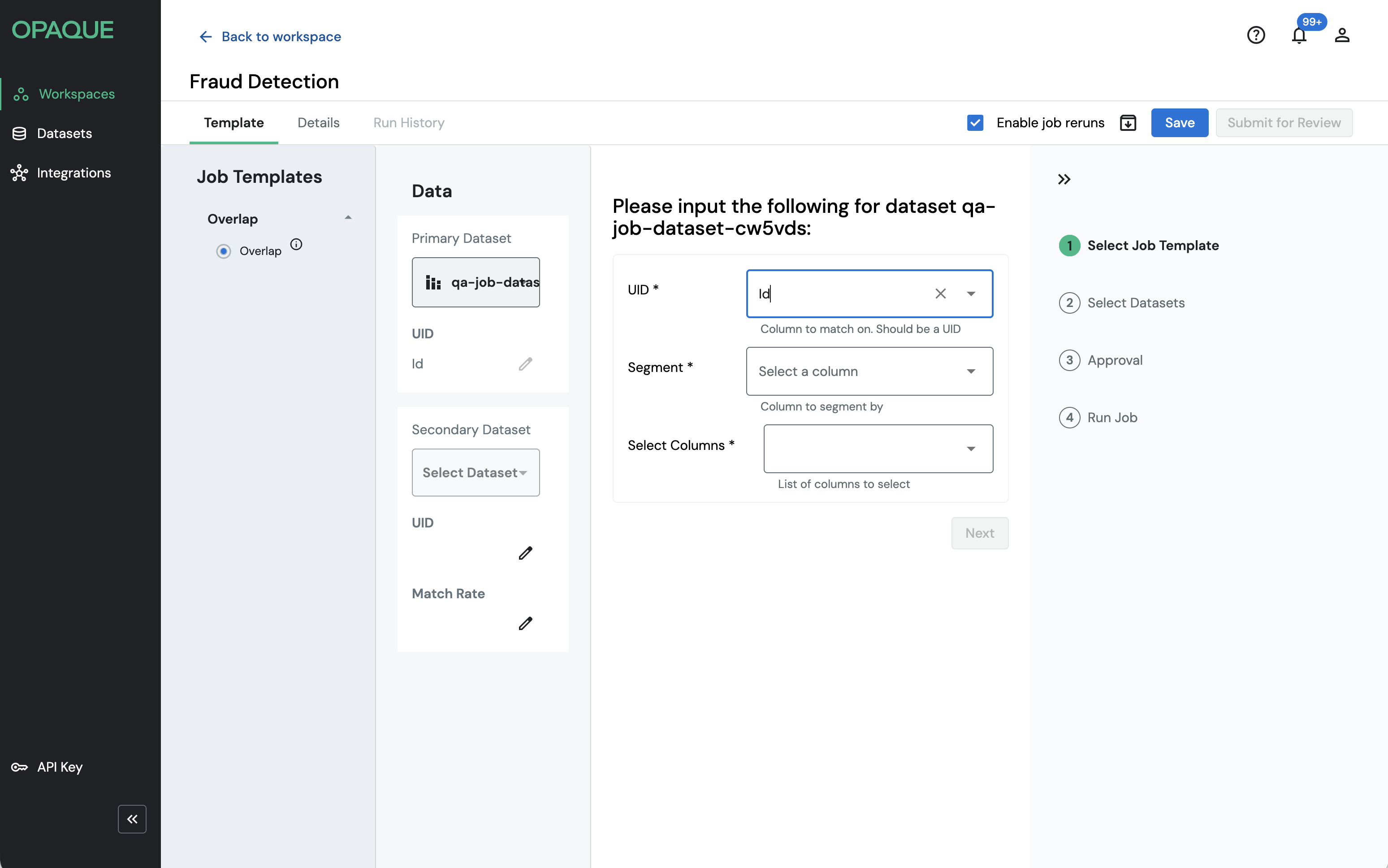
Screenshot of the Job tab while a job is being drafted, with three key components called out.
Results and logs
After a job runs, two tabs appear in the center of the Template tab:
- Results shows up to the first 100 rows of output. Visible to the job creator only. Includes an Export results button to download a CSV file.
- Logs shows output from successful runs or error details from failed runs. Visible to all workspace members. Includes an Export logs button to download a TXT file.
For results and logs from past runs, use the Run History tab.
Job management
The actions available in the upper-right corner depend on your role and the job's current status.
| Job status | Job creator can… | Reviewer can… |
|---|---|---|
| Draft | Save, Submit for Review, Test on Mock Data | — |
| Under review | Cancel Review | Accept / Reject, Test on Mock Data |
| Accepted | Run Job | Revoke Repeatability |
| Queued / Running | Cancel Run | Revoke Repeatability |
| Succeeded / Failed | Run Job | Revoke Repeatability |
OPAQUE only shows actions that are relevant to the job's current state. Revoke Repeatability appears only after reruns have been enabled. Job creators can archive a job at any time, but deletion is only allowed while the job is still in draft and hasn't been run.
Note
The rerun indicator and Revoke Repeatability option are not available in single-member workspaces.
Info
For a high-level overview of how jobs progress from draft to completion, check out Job lifecycle.